

How to Create Trending Tiny Baby Bathing in Palm AI Videos for Instagram Reels
STEPS AND PROMPTS ARE GIVEN BELOW
Have you seen those adorable Instagram Reels featuring a tiny baby standing in a person's palm while water gently pours over the baby's head? These miniature-baby videos attract attention because of their cute expressions, realistic water effects, and incredible size contrast.
The good news is that you can create a similar fictional AI video without a camera, professional equipment, or a real baby. In this tutorial, you'll learn the complete process, from generating the first image to animating it, editing the video, and publishing it on Instagram Reels.
What You Need Before Starting
You will need the following tools:
- AI image generator: To create the tiny baby and oversized human palm.
- AI video generator: To animate the image with realistic water movement and facial expressions.
- Video editor: To trim clips, add audio, and prepare the final video.
- Instagram account: To publish your finished Reel.
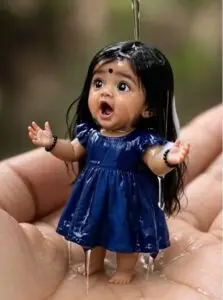 You can use ChatGPT or another image generator for the first image, an image-to-video tool such as Google Flow or Veo for animation, and CapCut or another editor for the final touches. Tool availability, pricing, and supported features may vary.
Step 1: Understand the Tiny Baby in Palm Video Style
The first step is to understand the visual elements that make this trend distinctive.
A typical video contains:
- A tiny, realistic-looking baby standing in a large cupped human palm.
- A gentle stream of water falling over the baby's head.
- A surprised, smiling, or playful facial expression.
- Small water droplets and realistic splashes.
- A softly blurred outdoor or garden background.
- Vertical framing suitable for Instagram Reels.
For a consistent result, create one good image first and animate that image rather than generating the entire scene from scratch in a video tool.
Step 2: Generate the Tiny Baby Image
Open your preferred AI image generator. Describe the baby, hand position, water, lighting, clothing, and background clearly.
Copy-and-Paste AI Image Prompt
Create an ultra-realistic miniature-world photograph of an adorable tiny South Asian baby standing securely in the center of a large adult human palm. The adult's other hand gently supports the scene. The baby has chubby cheeks, expressive dark brown eyes, soft black hair, and an adorable surprised smile. The baby wears a beautiful, modest blue baby dress. A gentle stream of clean water falls over the baby's hair, creating tiny droplets and natural reflections. Water collects safely in the cupped palm, with realistic ripples and delicate splashes. Use a softly blurred green garden background, natural daylight, detailed skin texture, realistic proportions, professional macro photography, shallow depth of field, and a charming miniature-scale illusion. Keep the baby fully clothed and the scene wholesome and family-friendly. Vertical 9:16 composition, subject centered, high detail, no text, no logo, no watermark.
Tips for Better Images
- Generate multiple variations and choose the most natural-looking result.
- Check that the fingers, palm, baby's feet, and face look anatomically consistent.
- Keep the water stream thin and gentle.
- Avoid excessive reflections or overly glossy skin.
- Save the selected image in the highest available resolution.
The image is the foundation of the video. If the first image contains obvious distortions, those problems may become more noticeable during animation.
Step 3: Animate the Image Using an AI Video Generator
Once your image is ready, open an image-to-video generator that supports image uploads.
The general workflow is:
- Open the video-generation tool.
- Choose the image-to-video option.
- Upload your tiny baby in palm image.
- Select a vertical aspect ratio if available.
- Enter the animation prompt below.
- Choose a short duration supported by the tool.
- Generate the clip and review the result.
Copy-and-Paste AI Video Prompt
Animate the supplied image into a realistic vertical miniature-world video. Preserve the exact baby character, facial features, hairstyle, clothing, human palm, and background from the reference image.
A gentle stream of water flows over the baby's hair. The baby blinks naturally, looks upward at the falling water, smiles with a surprised expression, and gently moves both hands. Tiny water droplets fall from the hair and dress, while small ripples and splashes move naturally across the cupped palm.
Use subtle cinematic camera movement, realistic water physics, natural daylight, detailed droplets, smooth motion, and a softly blurred garden background. Keep the baby securely supported and the water gentle. Maintain consistent facial features and anatomy throughout the clip.
Single continuous shot, vertical 9:16 composition, wholesome family-friendly fantasy, no scene changes, no sudden zooms, no distorted fingers, no extra limbs, no face morphing, no text, no watermark.
Recommended Animation Settings
- Aspect ratio: 9:16 vertical.
- Duration: Approximately 5–8 seconds, if supported.
- Camera movement: Subtle push-in or stable close-up.
- Motion strength: Moderate or low-to-moderate, depending on the tool.
- Visual style: Photorealistic miniature fantasy.
Avoid asking the AI to perform too many actions simultaneously. Simple movements generally make it easier to preserve the baby's face and body.
Step 4: Generate Additional Clips if Needed
A single good clip may be enough for a short Reel. However, you can create additional shots to make a longer tutorial example.
Shot 1: The Opening
Show the tiny baby standing in the palm, looking upward with a cute, surprised expression.
Shot 2: Water Falling
Animate a gentle stream of water flowing over the baby's hair, with small droplets visible in the light.
Shot 3: Cute Reaction
Show the baby blinking, smiling, and gently moving both hands while the water continues to flow.
Shot 4: Final Close-Up
Finish with a close-up of the baby's joyful expression and the water droplets on the hair and clothing.
For consistency, reuse the same reference image when possible. If the tool changes the baby's face between generations, use the best single clip instead of forcing the clips together.
Step 5: Edit the Video in CapCut
After generating the animation, import it into CapCut or your preferred video editor.
Follow these steps:
- Create a new project.
- Import the generated video clips.
- Set the canvas to a 9:16 vertical format.
- Trim unnecessary pauses at the beginning and end.
- Keep the most visually interesting moment near the start.
- Add gentle water sounds or suitable background music.
- Add a short caption if needed.
- Preview the video at full-screen mobile size.
- Export the finished video.
Suggested Export Settings
| Setting | Recommendation |
|---|---|
| Aspect ratio | 9:16 |
| Resolution | 1080 × 1920 |
| Frame rate | 30 fps, when appropriate for the source |
| Format | MP4 |
| Audio | Licensed music or suitable sound effects |
Do not artificially increase frame rate or resolution if doing so creates visible artifacts. Prioritize natural movement and a clean image.
Step 6: Make the Reel More Engaging
The opening seconds are important because viewers can scroll away at any time.
Try the following techniques:
- Start with the tiny baby already visible.
- Avoid long introductory title screens.
- Keep the water stream and facial expression easy to see.
- Use a simple, uncluttered background.
- Choose audio that matches the gentle, playful mood.
- Create a smooth ending if you want the video to loop.
Possible on-screen text:
“Tiny Baby Bath Time 💧”
“Little Moments, Big Cuteness”
“An AI Miniature World”
These are creative suggestions, not guarantees of virality. Test different versions and compare watch time, completion rate, shares, and saves.
Step 7: Create a Looping Video
A seamless loop can encourage viewers to watch the clip again.
To attempt this:
- Choose an opening frame with the baby in a stable pose.
- End with a similar pose and camera position.
- Trim the clip so the transition between the final and first frames feels natural.
- Preview the loop several times.
- If the water suddenly jumps or the baby's face changes, use a normal ending instead.
Some AI video tools also offer loop or extend features. Results vary depending on the model and source image.
Step 8: Publish the Video on Instagram Reels
When the video is ready:
- Open Instagram.
- Start creating a Reel.
- Upload the exported vertical video.
- Select suitable licensed audio if you have not already added it.
- Write a short, accurate caption.
- Choose a clear cover image.
- Check the video preview.
- Publish the Reel.
Example Instagram Caption
A tiny baby, a magical miniature world, and a little splash of cuteness. 💧✨
This is an AI-generated fantasy video created using image generation and animation tools.
Suggested Hashtags
#AIVideo #AIAnimation #TinyBaby #MiniatureWorld #InstagramReels
Use only relevant hashtags. A large number of hashtags does not guarantee increased reach.
Step 9: Write an SEO-Friendly Website Article
If you're publishing this tutorial on your website, use a clear title and explain the actual process instead of simply listing prompts.
SEO title: How to Create Tiny Baby Bathing in Palm AI Videos
Suggested URL slug: tiny-baby-bathing-palm-ai-video
Meta description: Learn how to create tiny baby bathing in palm AI videos for Instagram Reels using image generators, video animation tools, and simple editing techniques.
Suggested Article Structure
- Introduction to tiny baby in palm videos.
- AI tools required.
- How to generate the first image.
- Copy-and-paste image prompt.
- Image-to-video animation instructions.
- Copy-and-paste video prompt.
- Recommended settings.
- Editing the video in CapCut.
- Instagram Reels publishing instructions.
- Common mistakes and troubleshooting.
- Frequently asked questions.
Include original screenshots of the tools and your own example results where possible. Explain which settings you used and what limitations you encountered. This makes the article more useful to readers than a generic AI-generated tutorial.
Step 10: Common Problems and Solutions
Problem: The baby's face changes during animation.
Solution: Use a clear reference image, reduce motion complexity, and avoid abrupt camera movements.
Problem: The hands look distorted.
Solution: Generate another image with clearly visible, naturally positioned fingers and a simple palm pose.
Problem: The water looks unrealistic.
Solution: Describe a thin, gentle stream and small droplets instead of a heavy waterfall.
Problem: The video looks artificial.
Solution: Reduce excessive skin smoothing, dramatic lighting, and unnecessary movements. Use natural proportions and a less complicated background.
Problem: The video looks blurry after export.
Solution: Start with a high-resolution image, export using suitable settings, and avoid repeatedly compressing the same video.
Problem: Different clips look like different babies.
Solution: Reuse the same reference image and select the most consistent clips. If consistency remains poor, publish one strong continuous shot.
Step 11: Important Safety and Publishing Considerations
These videos should be presented as fictional AI-generated miniature scenes, not as real baby-bathing footage.
- Keep the baby fully clothed and the scene non-sexual.
- Do not use real children's private bathing footage without appropriate authorization.
- Avoid dangerous depictions involving hot water, choking, drowning, or unsupported babies.
- Follow the relevant platform's rules for synthetic or AI-generated media disclosures.
- Use music, images, and other assets that you have permission to publish.
- Review Instagram's current Community Guidelines and recommendation policies before publishing.
Remember that AI-generated content is not guaranteed to become viral. Originality, quality, audience interest, and platform recommendations all influence performance.
Frequently Asked Questions
Can I create this video without a camera?
Yes. You can create the initial image with an AI image generator and animate it using an image-to-video tool.
Do I need advanced video-editing skills?
No. Basic trimming, vertical cropping, audio selection, and export settings are enough for a simple clip.
How long should the video be?
Start with a short 5–10-second example. Test longer versions only when the story or animation benefits from the extra time.
Can I publish the same video on Facebook Reels and YouTube Shorts?
You can adapt your original video for multiple platforms, but check each platform's current rules, audio permissions, and disclosure requirements. Export a clean version without another platform's watermark.
Will this method guarantee viral views?
No. The workflow helps you create a video in the style of the trend, but no prompt, tool, or hashtag can guarantee viral reach.
Conclusion
Creating a tiny baby bathing in a human palm AI video involves three main stages: generating a high-quality miniature image, animating it with gentle and consistent movement, and editing the final clip for vertical social media publishing.
Start with one well-designed image, keep the animation simple, and prioritize natural-looking water and facial expressions. Once you have a good result, document the process with screenshots and prompts so other beginners can follow your tutorial and create their own original versions.
Before you publish
For better search visibility, add your own screenshots showing the image-generation screen, the video-animation settings, and the final edited result. Use descriptive image alt text and link to the official tools you actually demonstrate. Avoid claiming that a particular tool or prompt guarantees trending results.
COPY PROMPT :
Create a 10-second ultra-realistic cinematic macro video in vertical 9:16 format. Scene: A tiny, adorable fantasy miniature character stands on the open palm of an adult hand. The character has natural proportions, large expressive brown eyes, delicate dark brown hair, a sweet smile, and a beautiful pastel multicolored dress with yellow, blue, pink, and peach layered fabric. Environment and camera: Warm indoor daylight, neutral blurred background, realistic skin and fabric textures, shallow depth of field, soft bokeh, 100mm macro lens aesthetic, stable close-up framing, premium cinematic quality. Action sequence: 0–2 seconds: The miniature character stands on the adult palm and looks curiously toward the camera. A second hand enters from the upper-right holding a small amount of fluffy white styling foam. 2–4 seconds: The adult gently applies the foam to the character's hair and carefully spreads it over the top. Small, realistic bubbles form. The character smiles and makes a playful, surprised expression. 4–5 seconds: Close-up of the character smiling beneath a fluffy white cap of foam. Tiny bubbles sparkle in the soft light. 5–6 seconds: A tiny beige miniature comb enters the frame. The foam gradually disappears in a smooth, visually pleasing transition, revealing damp dark brown hair. 6–8 seconds: The adult gently combs the hair from front to back. The hair becomes smooth and neatly arranged. The character remains balanced on the palm and smiles at the camera. 8–10 seconds: Final beauty shot. The hair is styled into a tiny ponytail or top-knot with a small hair tie. The character smiles brightly while standing on the adult palm. Hold the composition with gentle camera movement and cinematic bokeh. Visual requirements: Photorealistic miniature-fantasy aesthetic, realistic adult hand anatomy, consistent character identity, consistent dress and proportions, believable foam and hair movement, smooth transitions, natural lighting, detailed textures, and a warm, wholesome atmosphere. No morphing, duplicated characters, extra fingers, distorted anatomy, floating objects, text, logos, or watermarks. Audio: Soft playful instrumental music with subtle foam and combing sounds. No dialogue or voice-over. The finished video should resemble a professionally filmed miniature fantasy commercial, with the original pastel styling, tiny character, foam-covered hairstyle, combing sequence, and final ponytail reveal preserved.